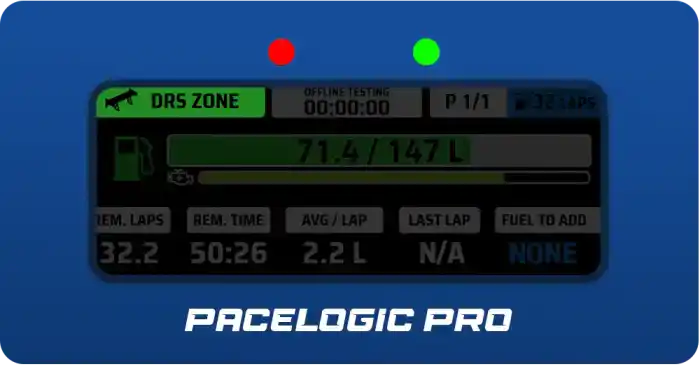
Pacelogic Pro Manual

Complete guide to installing, configuring, and using all features of Pacelogic Pro. Navigate through each section to learn how to get the most out of your dashboard.

Installation

  1. Download the latest version of SimHub from https://www.simhubdash.com/download-2/

    (Always update SimHub before dashboard updates!)

  2. Install the Full Pace Hub SimHub Plugin. Follow the installation guide on the Full Pace Hub page.

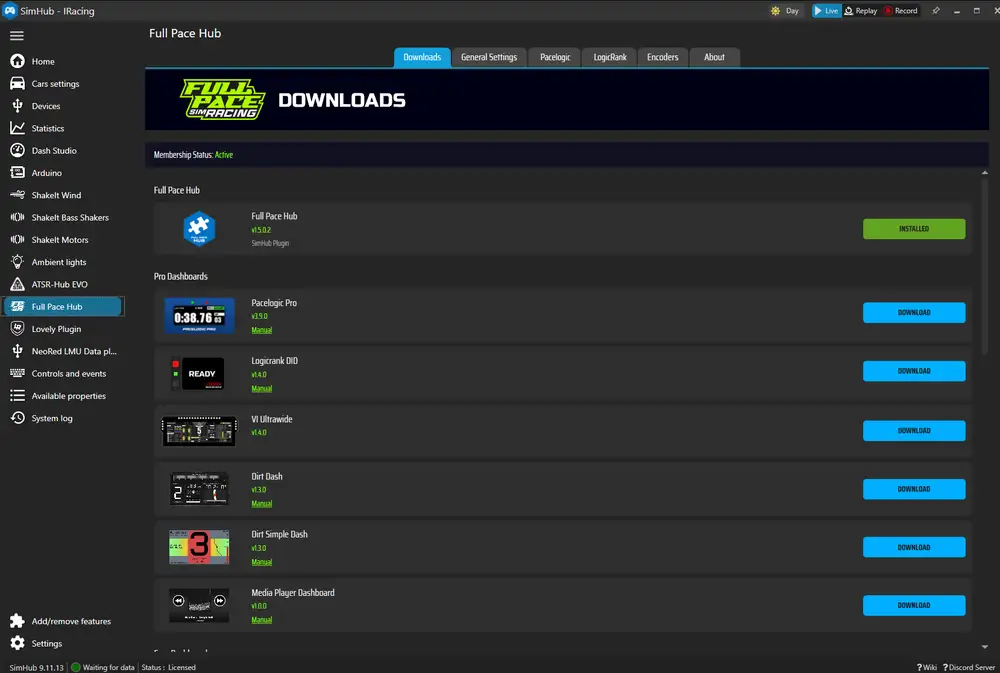
  3. Open the Full Pace Hub plugin in SimHub and go to the Downloads tab. You can install the free Demo version or the full membership version with an active Ko-Fi subscription (more information).

    To access the Pro version, you need to be logged in with Discord. Your membership status is shown at the top of the Downloads tab.

    Hub Downloads Tab
  4. Go to the Devices tab

    • If you own a Velocitas Imperium lap timer, click "Add device" and select it from the SimHub device list.
    • If you own a SimPush or DaSimSimma lap timer, download the setup files, unzip them, then click "Import device from file" and select the device file in the installer folder.
    Device Setup
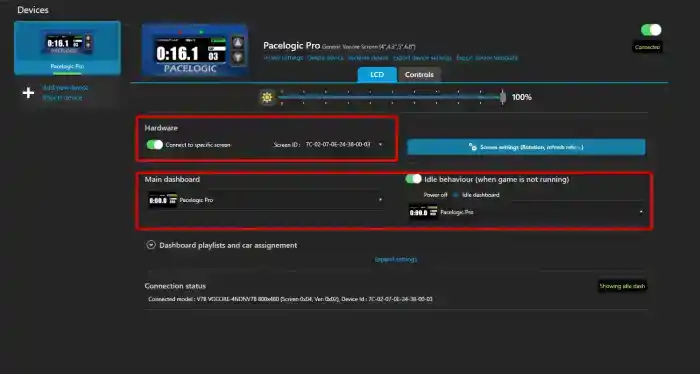
  5. Your device is now added to SimHub. Make sure your screen ID is set and that the Pacelogic Pro dashboard is set correctly.

    Device Configuration
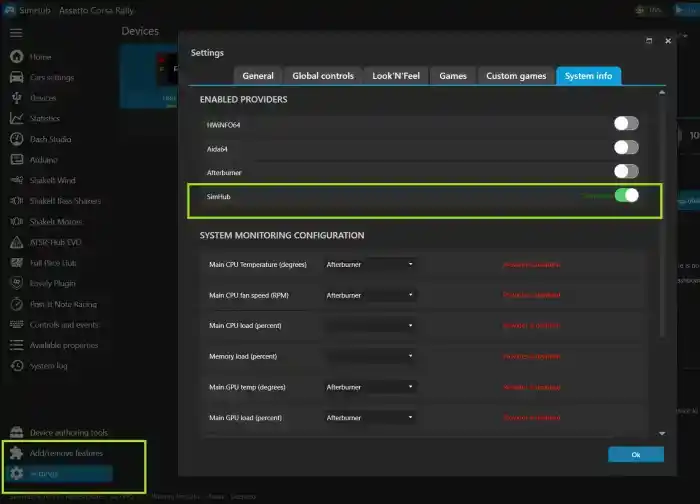
  6. Activate SimHub's System info provider in Settings → System info tab

    System Info Provider

Updating the software

💡 If an update is available you will get a notification on the dashboard. Downloads are available directly from the Full Pace Hub plugin's Download tab. For membership dashboards an active subscription is required.

Selecting your device in the Full Pace Hub Plugin

Pacelogic Pro adapts to a wide range of hardware devices and also offers modes for using as an overlay.

Select your device in the Full Pace Hub plugin device section for Pacelogic. If your device is not officially supported, select "other devices" from the list, that allows you to position and scale elements of the dashboard to fit as good as possible.
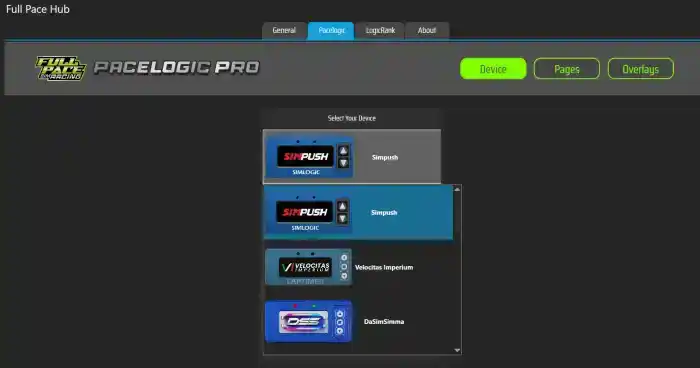
Device Selection

Demo Version

The Demo version is a feature-limited version of Pacelogic Pro, available for free through the Full Pace Hub plugin. It includes the following functions:

  • Lap Time
  • Delta T
  • Last Lap Details
  • Speedometer
  • Session Progress
  • Track Data
  • Pit Screen
  • Position
  • Remaining Fuel Laps
  • Lap Review
  • G-Meter
  • Electronic Changes

Pacelogic Pro Membership Features

Customizing the dashboard

Dashboard Customization

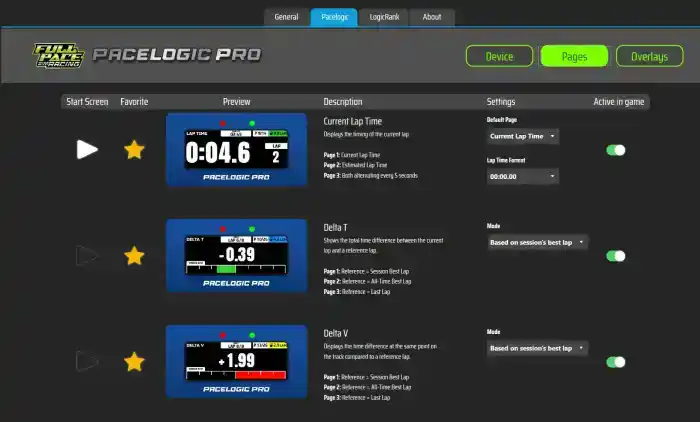
Within the Pages and Overlays tabs in the plugin you can customize the dashboard to your liking. You can disable pages and overlays, set favorites that are quickly accessible via the touch menu or via "Flip Screens", set your preferred start page of the dashboard, default modes and pages, etc.

Touch Controls

There are six zones on the touch screen that trigger the control actions of the dashboard.
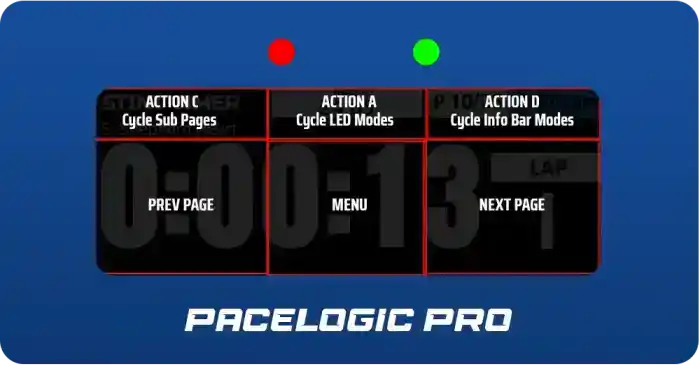
Touch Control Zones

Button Controls

Button Control Layout

To control the dashboard via buttons go to your Device settings and switch to the Controls tab. Assign buttons to:

  • next dash screen
  • previous dash screen
  • Action C = dash screen sub
  • Action A = cycle through led modes
  • Action D = Cycle info bar modes
Button Assignment

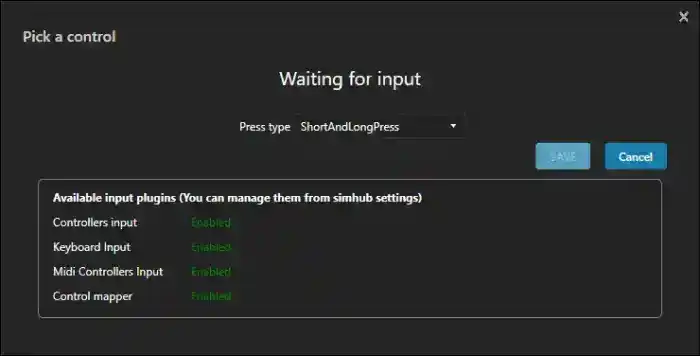
💡 To save buttons you can assign two functions to one button via short and long press. For example you can go to the next screen page with a short press and to previous screen with a long press. Just assign the same button to both functions but change the press type to short / long press (we recommend "long press no auto repeat" over the regular long press)

Flip Screens - Advanced controls via the Full Pace Hub plugin
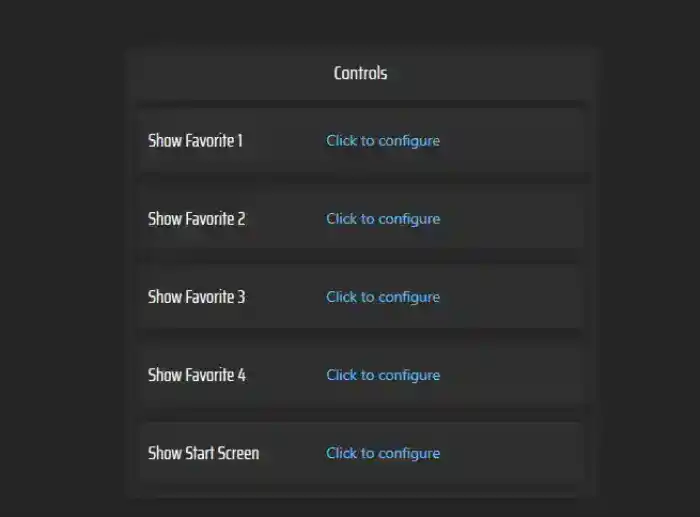
Flip Screens Setup

You can further customize your dashboard with our Hub plugin. On the pages tab you can set 4 favorite pages that are not only quickly accessible via the touch menu, they can also be used as what we call "Flip Screens".

In the Pacelogic device tab, assign a hotkey or button to the favorites. With these buttons you can switch to the favorite page for 5 seconds and it flips back to your previous screen. This makes it perfect for quickly checking temps, damage, or leaderboard without leaving your preferred main screen.

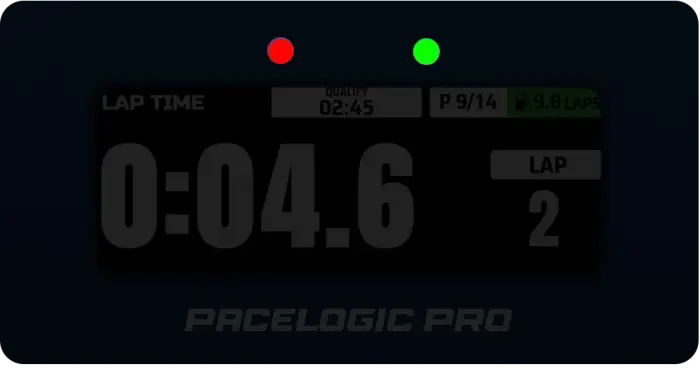
Dark Modes

Dark Mode Options

Pacelogic Pro is fully compatible with Lovely Dashboard's True Dark Mode. If you have the Lovely plugin installed, all your dark mode settings are used with Pacelogic as well. Just select Lovely TDM in the plugin Dark Mode. If you don't use the Lovely plugin, you can select Full Pace Night mode as an alternative and assign a button to activate it.
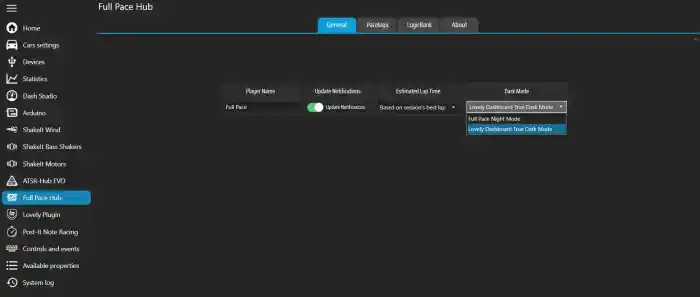

Dark Mode Configuration

Functions

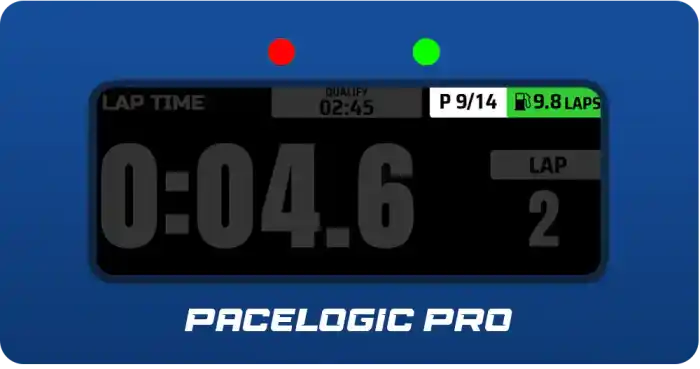
Laptime

Current Lap

Page 1: Current Lap

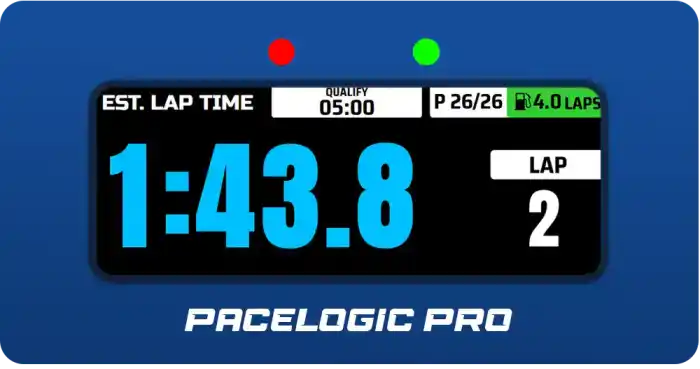
Estimated Lap Time

Page 2: Estimated Lap Time

Page 1: Current Lap

Page 2: Estimated Lap Time

Page 3: Current + Estimated alternating every 5 seconds

Last Laptimes

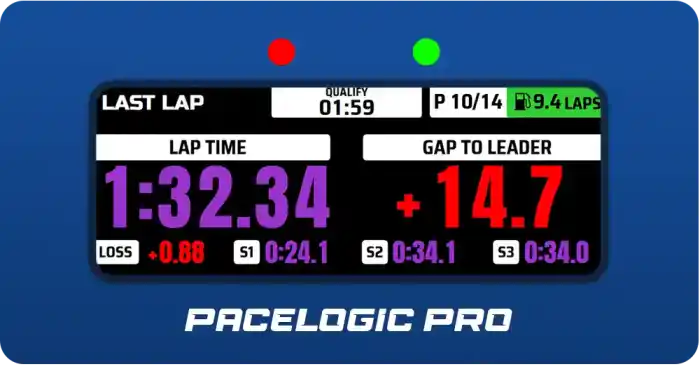
Last Lap Details

Page 1: Last Lap Details

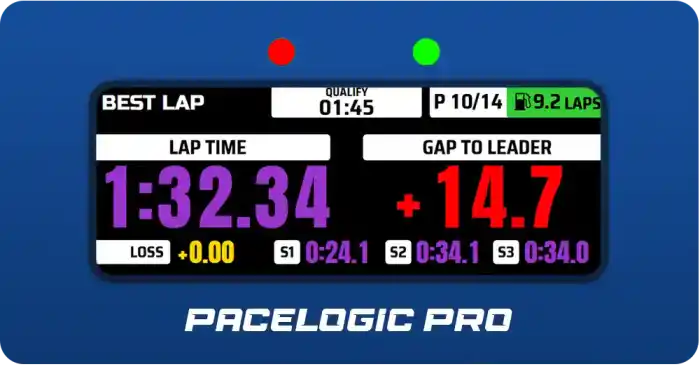
Best Lap Details

Page 2: Best Lap Details

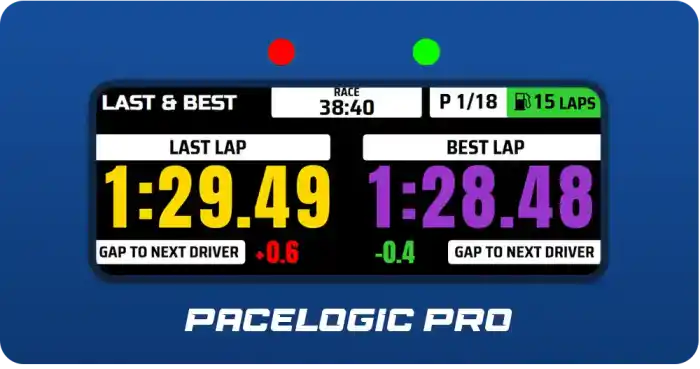
Last and Best Combined

Page 3: Last and Best Lap combined

Page 1: Last Lap Details

Page 2: Best Lap Details

Page 3: Last and Best Lap combined

Delta T

Delta T

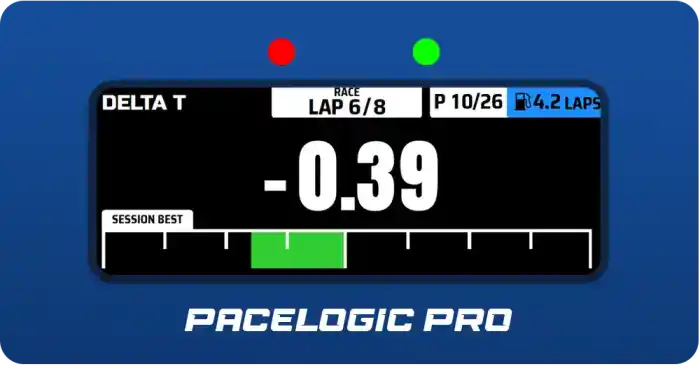
Delta T shows whether you are ahead or behind a reference lap at the current track position — measured in time. A negative value means you are currently faster than the reference, a positive value means you are slower.

Page 1: Delta T based on session best lap time

Page 2: Delta T based on all time best lap time

Page 3: Delta T based on last lap time

Delta V

Delta V

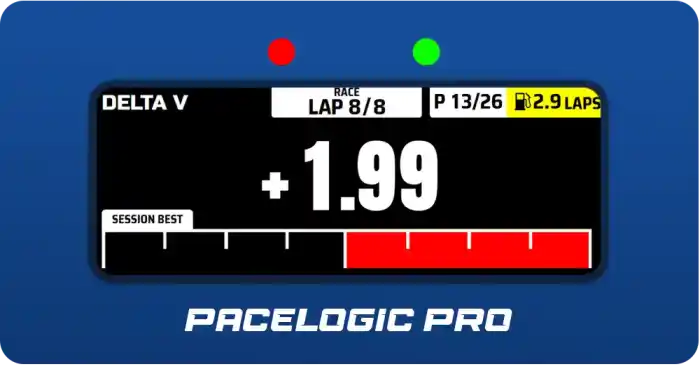
Delta V compares your current speed to the speed at the same track position on a reference lap. It shows you exactly where you are losing or gaining speed, making it a precise tool for identifying braking points, corner entry, and exit speed differences.

Page 1: Delta V based on session best lap time

Page 2: Delta V based on all time best lap time

Page 3: Delta V based on last lap time

Gaps

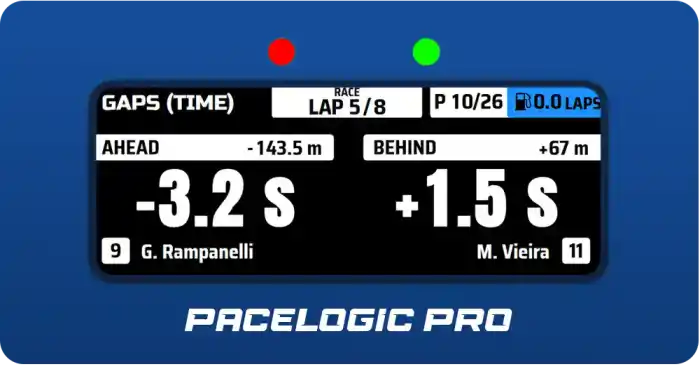
Gaps Time

Shows the time gap to the car ahead and behind. In multi-class races, gaps are shown relative to your own class. You can switch to global standings at any time using the button mapping for Global Standings.

Leaderboard

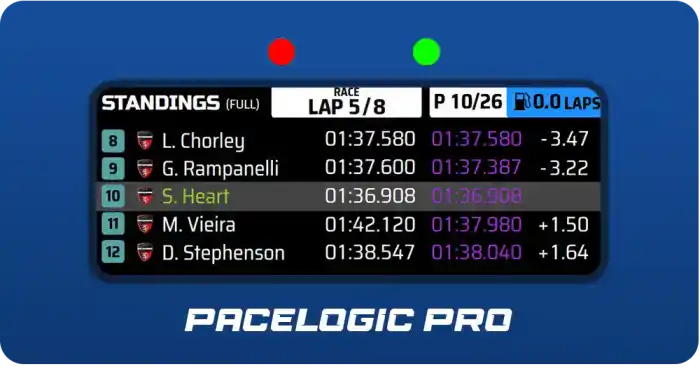
Leaderboard

Shows the current race standings. In multi-class races, the leaderboard is based on your own class. You can switch to global standings at any time using the button mapping for Global Standings.

Track Details

Track Details

Stint Timer

Stint Timer

Fuel

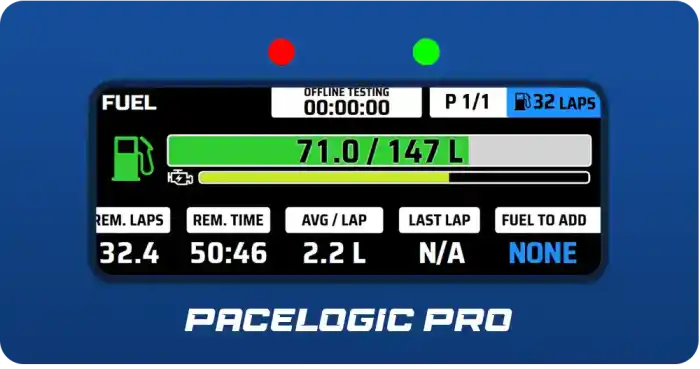
Fuel Monitor

Page 1: Fuel Monitor with ERS

Fuel Calculator Laps

Page 2: Fuel Calculator (lap based)

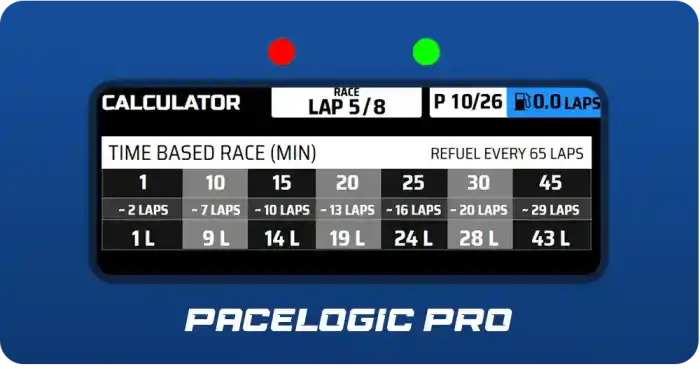
Fuel Calculator Time

Page 3: Fuel Calculator (time based)

Page 1: Fuel Monitor with ERS (if available)

Page 2: Fuel Calculator (for lap based races)

Page 3: Fuel Calculator (for time based races)

Car Data

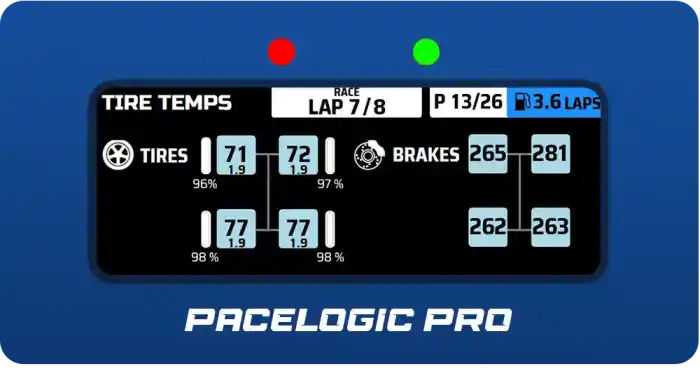
Tires and Brakes

Page 1: Tires & Brakes

Sensors

Page 2: Sensors

Page 1: Tires & Brakes

Page 2: Sensors

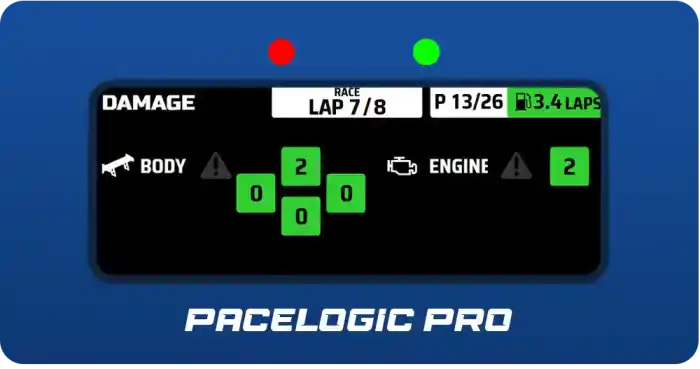
Damage

Damage Display

There are game-optimized damage displays for AMS2, RaceRoom, and LMU. For LMU, the NeoRed plugin is required, which can be downloaded from the LMU forum.

Speedo

Speedometer

Page 1: Speedmeter and Gears

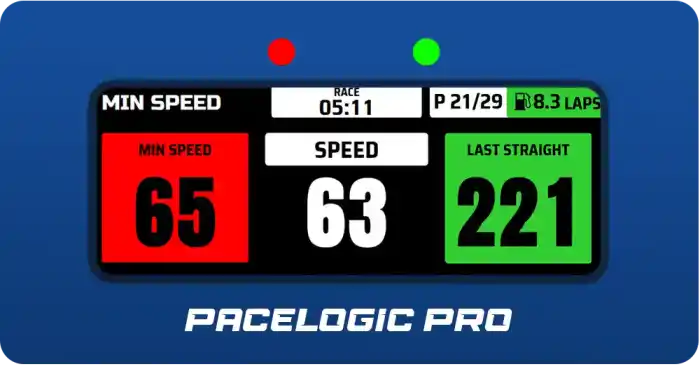
Min Speed

Page 2: Schumacher Min Speed

Page 1: Speedometer and Gears

Page 2: Michael Schumacher's Min Speed - A technique invented by Michael Schumacher to determine the best gear for the fastest corner. Read more here

Inputs

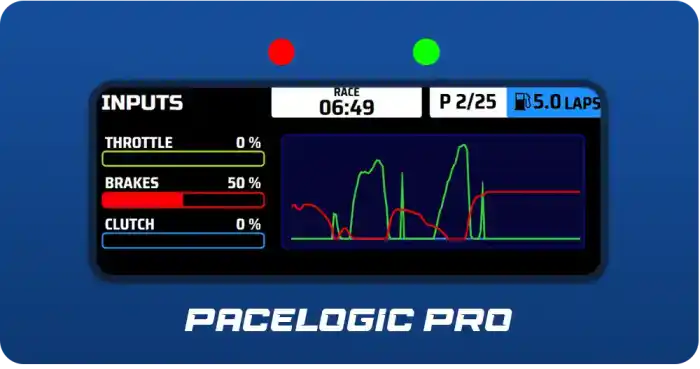
Pedal Inputs

Page 1: Pedal Inputs

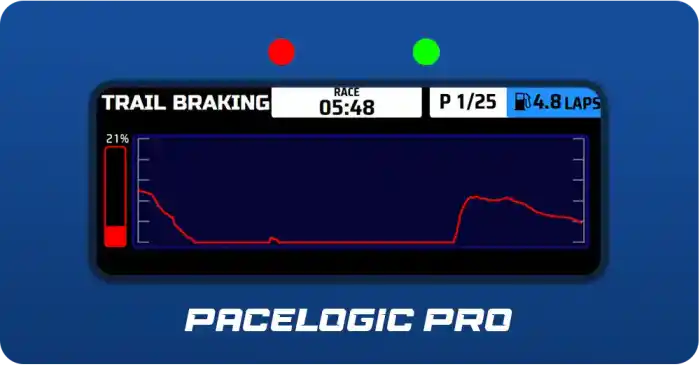
Trail Braking

Page 2: Trail Braking Monitor

Page 1: Pedal Inputs

Page 2: Trail Braking Monitor

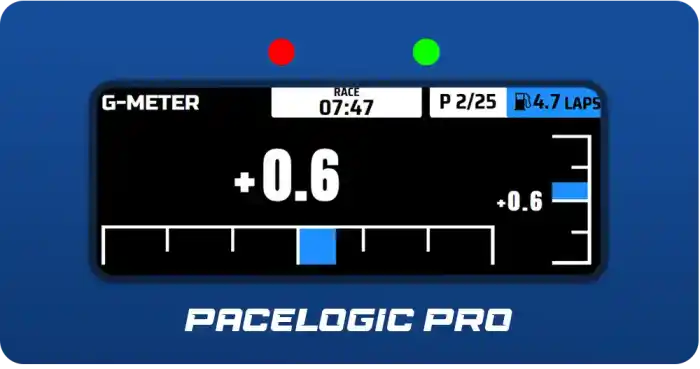
G-Meter

G-Meter

System Information

System Information

Quickly check your hardware status. This feature requires additional software. Read more: SimHub System Info Wiki

LED Functions & Info Bar

LED Functions

LED Functions
  • Delta V & Delta T
  • Redline reached (Shift light)
  • Spotter left & right
  • Pit Limiter off / on (mode starts automatically when entering pit lane)

Info Bar Functions

Info Bar
  • Page 1: Remaining Fuel (Laps) + Fuel Alerts
  • Page 2: Delta T
  • Page 3: Delta V
  • Page 4: Current Lap Time
  • Page 5: Tire Temps
  • Page 6: ERS

💡 Any value or element in blue color is currently calculated or needs more data to be calculated

Overlays

Session Info

Session Info

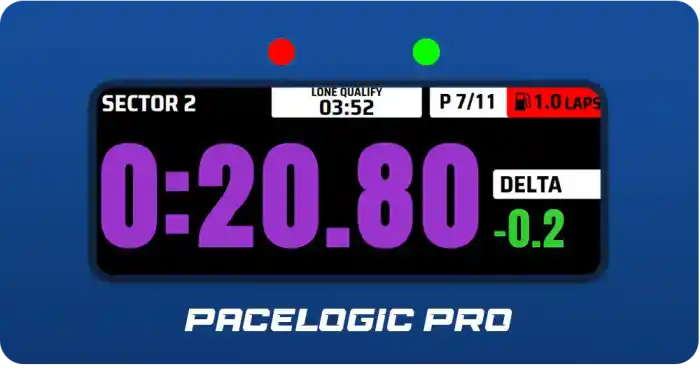
Session type and remaining time or remaining laps

Lap invalidated

Lap Invalidated

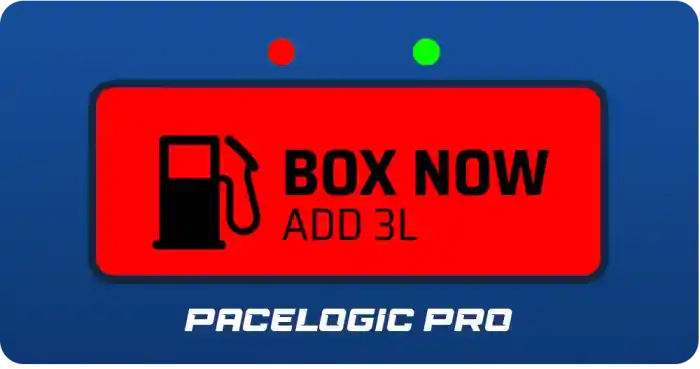
Fuel Alerts

Fuel Alerts

Fuel alerts are only displayed when the calculated remaining fuel will not last until the estimated end of the race. Alerts have a buffer calculated so sometimes they activate even though fuel will last. This is a safety feature in case there are additional laps to drive or unplanned full course yellows.
Flags

Flags

Electronics

Electronics

Damage

Damage Overlay

Lap Review

Lap Review

Sector Review

Sector Review

Pit Limiter

Pit Screen

Pit Screen

Fuel Calculator (lap based)

Pit Calculation — Lap Based

Fuel Calculator (time based)

Pit Calculation — Time Based

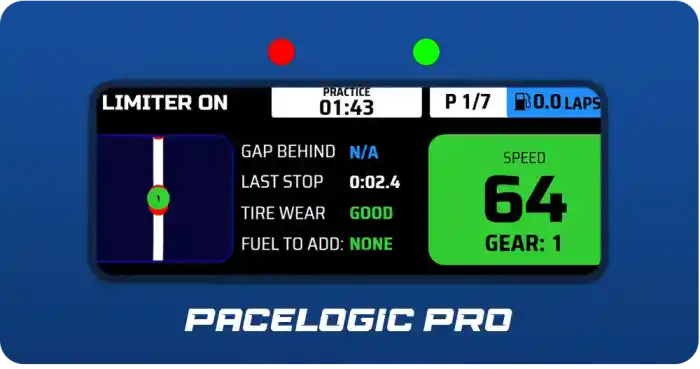
When the pit limiter is active, the dashboard switches to a dedicated pit screen showing the most important information for your pit stop. You can also access the fuel calculation directly from here — either lap-based or time-based depending on your race format.

DRS Zones

DRS Zones

An indicator that alerts you when you are inside a DRS zone but have not yet activated DRS.

Troubleshooting

"My display won't turn on and only shows Vocore"

Possible Solutions:

  • Make sure you installed the USB display drivers
  • Make sure you plug the display directly in a USB port on your computer or use a powerful USB hub. Vocore displays are very picky when it comes to power and data interferences
  • Try different ports back and forth
  • Restart your computer (don't shut down, restart!) so the usb drivers will be re-initialized

"My display shows only partial images"

  • Make sure you plug the display directly in a USB port on your computer or use a powerful USB hub. Vocore displays are very picky when it comes to power and data interferences. Partially rendered / shifted screens are a common issue and not related to the dashboard.

"The dashboard won't show all screens shown on the website"

  • Make sure you're not the only car on the track. Some screens like leaderboard, gaps, etc. are only available when there are opponents on track, so you don't have to scroll through screens without functionality in single car sessions